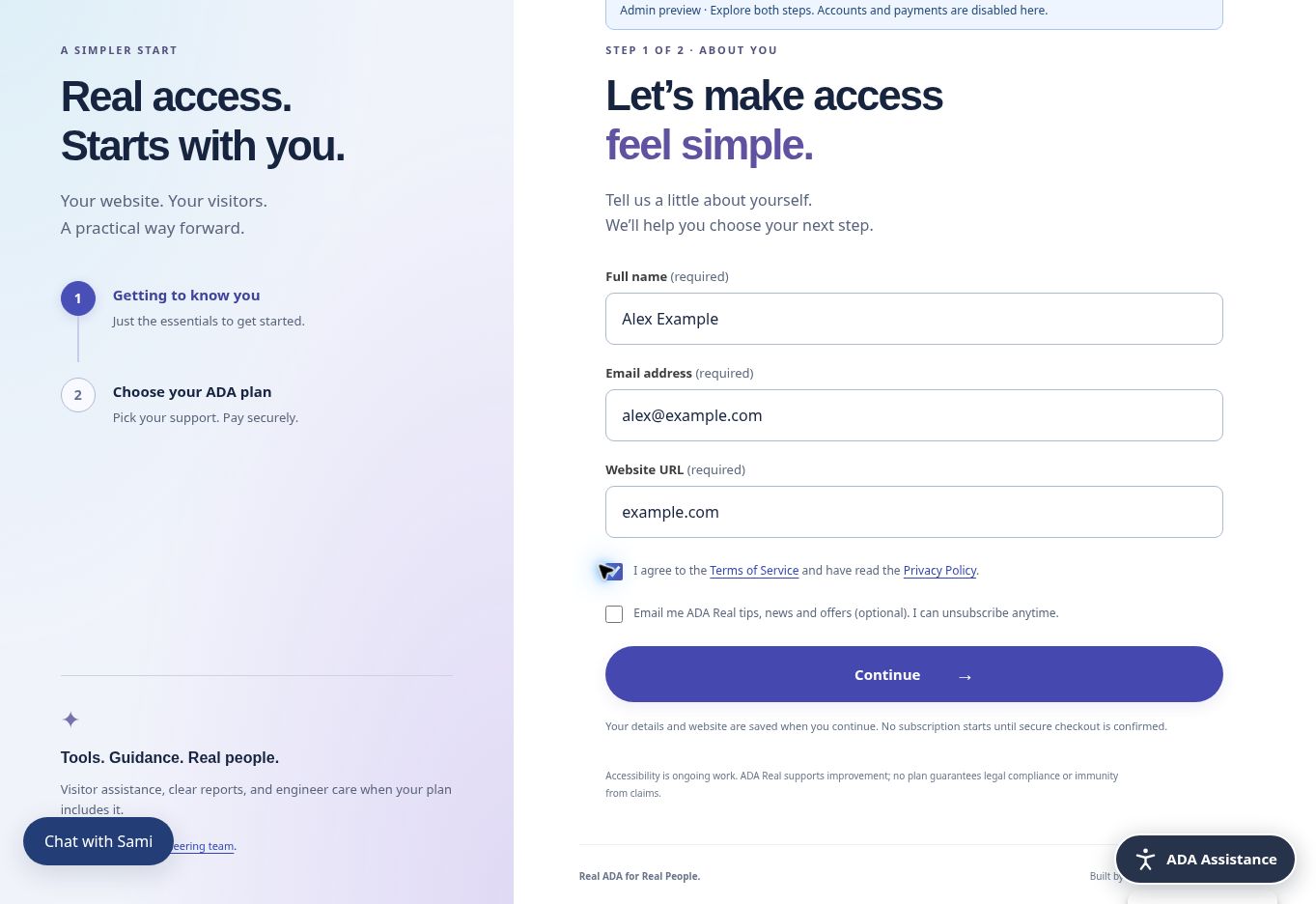
Getting started
Resume checkout and verify your email
Continue with your saved website without starting over or creating another subscription.
Return with the same email
Your first Continue saves your contact details and website. Return to Get started with the same email address. If your secure session is still available, ADAR can resume your saved setup. Otherwise, it may ask you to verify ownership of the email before continuing. Entering an email address alone never proves account ownership.
Use the ADAR verification code
- Request verification only from the ADA Real signup flow.
- Open the newest “Your ADA Real checkout verification code” email.
- Return to the ADA Real verification screen linked in that message.
- Enter the six-digit code on that screen. It expires after ten minutes.
- Continue with your saved website, plan choice, and checkout.
If a code fails
Check that you used the newest message and entered its code on the matching verification screen. An old code may have expired or already been used. Avoid repeated requests: they can temporarily limit verification attempts. If needed, start again with the same email or use the branded password-recovery flow for an existing password. Never share a code with the AI assistant or support form.
Stripe Link is separate
Stripe may offer Link to remember payment details. A Link email or Link account page belongs to Stripe’s payment experience; it is not your ADA Real dashboard. After finishing payment verification, return to the ADA Real checkout tab. ADAR must confirm the website subscription or trial before dashboard access opens.
After confirmation
A confirmed subscription or eligible trial advances to password setup if required, then to your dashboard. If your existing page still shows an old verification message after a support fix, refresh that checkout once. Do not create a second payment while the first is being checked.
Screenshots and guided walkthroughs
These materials use the public demonstration or a safe admin preview. Sample details, screen layouts, and displayed prices can differ from your own account. Your live checkout quote and confirmation control your subscription.