Visitor tools
Adjust text, contrast, and reading preferences
Make supported content easier to read while keeping control of your browsing.
Start with one change
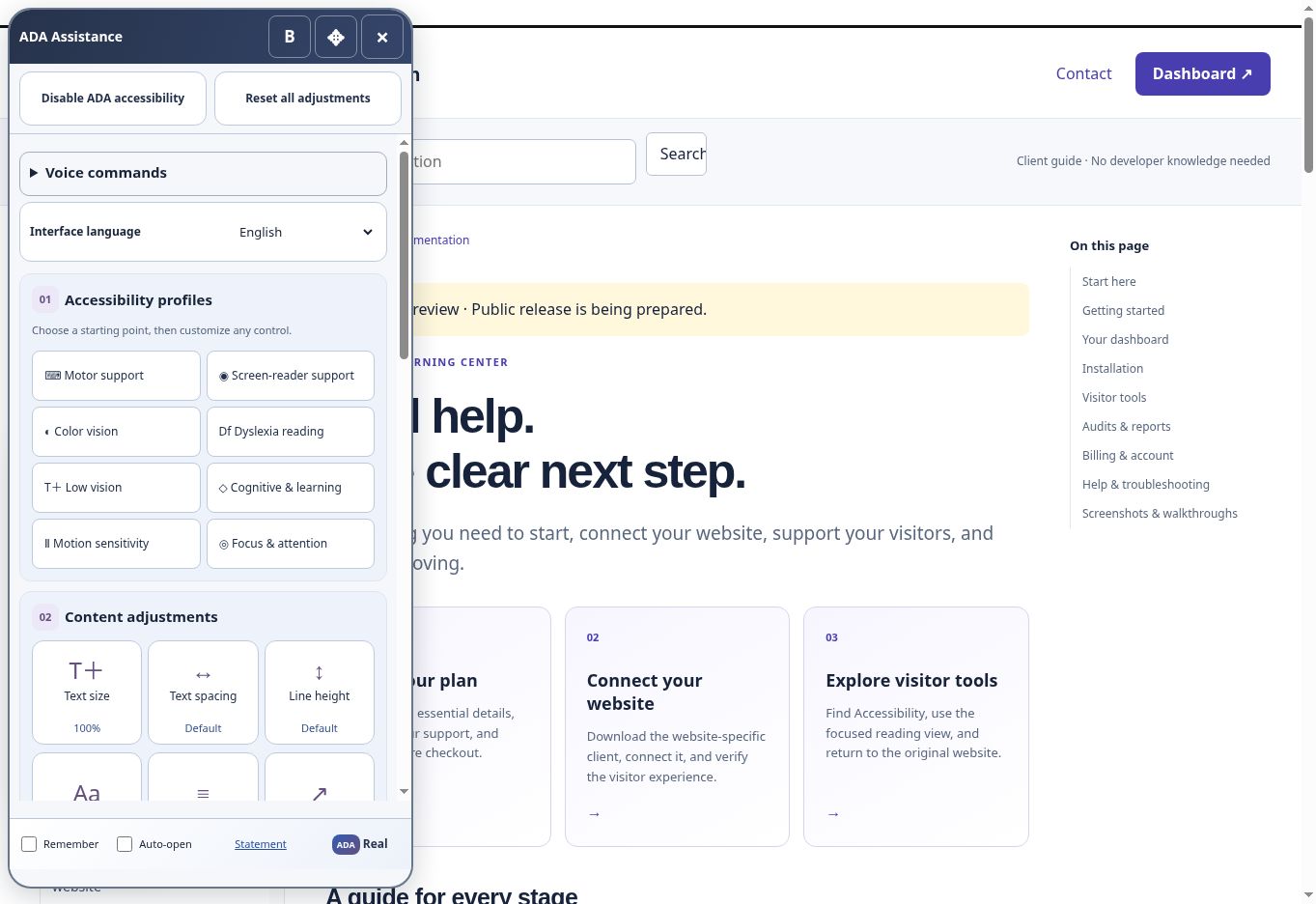
Open Accessibility and choose a display or reading preference suited to your needs. Depending on the current interface, options may affect text presentation, contrast, spacing, focus, or reading layout. Apply one adjustment, check the result, then combine it with another if useful.
Use the focused reading view
The reading view presents supported page content in a focused experience. It can help reduce visual clutter and organize reading and navigation. It does not guarantee that every dynamic widget, image, or third-party page can be transformed. Where an interaction is unsupported, return to the original page or ask the website owner for help.
Keep your place
Use meaningful headings and links to move through the available content. If a page transition takes a moment, wait for its loading state to finish before activating the same link repeatedly. For a long page, use section navigation where provided.
Reset or leave
- Open the ADA Real controls.
- Use Reset all adjustments to return the provided preferences to their defaults.
- Choose Disable ADA assistance if you prefer the original website.
- If an adjustment appears stuck, refresh the page and report the exact control and device.
For website owners
Preferences are an additional way to access content. They do not replace descriptive headings, readable text, useful labels, sufficient contrast, accessible forms, or testing with people who use assistive technology. Use audit findings and agreed improvements to address the underlying barriers as well.
Screenshots and guided walkthroughs
These materials use the public demonstration or a safe admin preview. Sample details, screen layouts, and displayed prices can differ from your own account. Your live checkout quote and confirmation control your subscription.