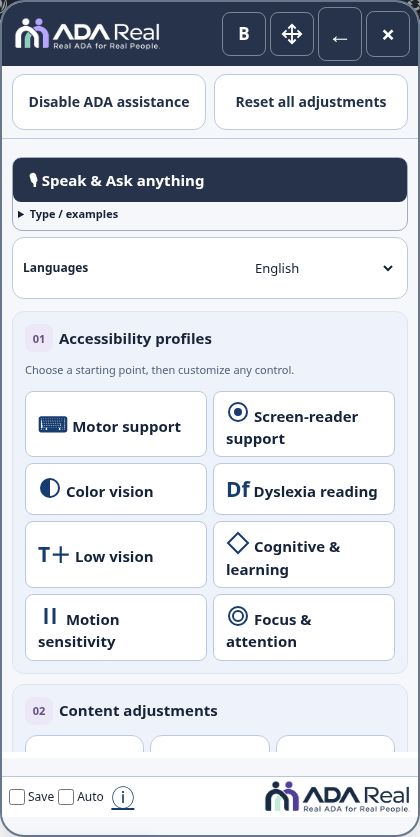
Visitor tools
Move the Hub and remember preferences
Move and close the Hub, switch regular or bold text, and manage Save and Auto on your own device.
Move and dock the Hub
Drag the Move control in the header. With a keyboard, focus Move and use arrow keys; hold Shift for larger steps. The position chooser offers left, right, and corner positions. Slide the panel aside when it covers a task, then use the edge arrow to restore it.
Regular and bold Hub text
The default Hub text style is regular, with larger, dark button labels and clearer icons. B switches to bold Hub text; R switches back to regular. The letter describes the available action. These controls change the Hub, not the website’s base typography. Saved visitor choices can override the default.
Compact footer
Save, Auto, and ⓘ are grouped beside a transparent ADA Real logo. Save remembers visitor preferences in the current device/browser. Auto controls whether assistance opens automatically on future supported visits. Use the logos to visit ADA Real in a new tab.
Information popup
Select ⓘ for the Accessibility Statement and assistance information. Close it with [X] Close or Escape. Focus returns to the information control, and the Hub remains open.
Close or disable
× closes the Hub while retaining the launcher. Disable ADA assistance returns to the original website and turns off automatic opening for this browser. Activating the launcher again restores assistance; its loading indicator explains any preparation delay.
Screenshots and guided walkthroughs
These materials use the public demonstration or a safe admin preview. Sample details, screen layouts, and displayed prices can differ from your own account. Your live checkout quote and confirmation control your subscription.