Getting started
Correct your website address
Fix a typo before subscribing and know when a domain change needs support.
Use the public website origin
Enter your public HTTPS website address, such as https://example.com. Leave out page paths, tracking parameters, fragments, usernames, passwords, and unusual ports. The installed client must connect from the registered website. If your public site uses www, use the actual public address and follow the installation instructions.
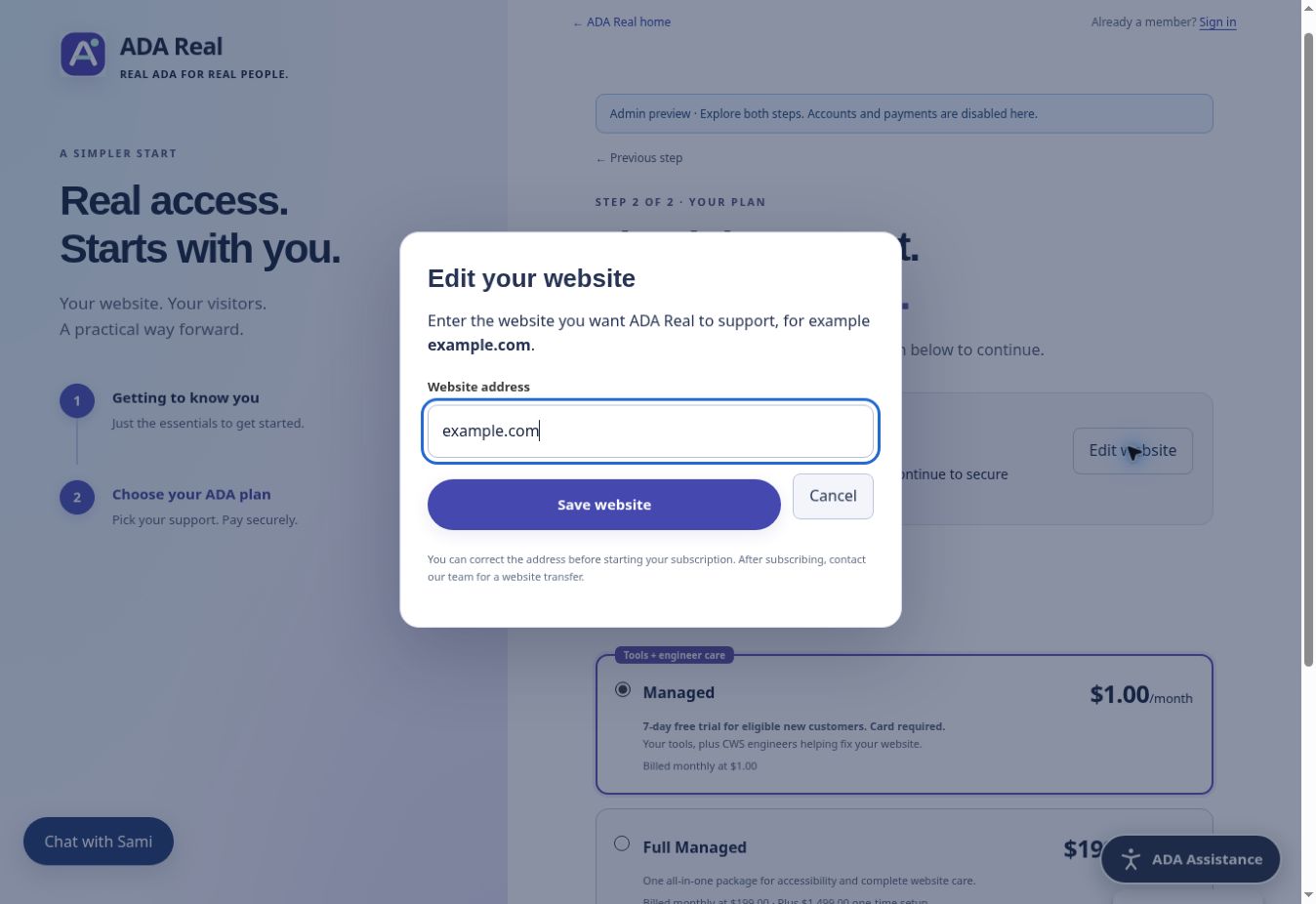
Edit during signup
- On the plan-selection screen, find the website address above the plans.
- Select Edit website.
- Enter the corrected main website address in the popup.
- Save. Check the displayed address, plan quote, and billing interval again.
- Read and accept the refreshed billing terms before continuing.
Edit an unpaid website in your dashboard
Where available, use More actions → Edit address in the website row. Changing an address closes unfinished checkout for the old address, so review and continue with the corrected quote. Available actions depend on the website’s subscription and review status.
After subscription or installation
Do not register a second paid subscription just to fix a domain typo. If Edit website is not offered, contact ADAR with the old address, intended address, account email, and whether the website has moved. The team can review the subscription and connection before any changes. Keep your original payment references.
Check your result
Verify the corrected address in the website row and in installation instructions. Open that exact public website and check visitor assistance. If the website redirects to a different domain, include both addresses when asking for help.
Screenshots and guided walkthroughs
These materials use the public demonstration or a safe admin preview. Sample details, screen layouts, and displayed prices can differ from your own account. Your live checkout quote and confirmation control your subscription.